Queue control, without the guesswork
Make the next lane choice. Fast.
Live status • On-device vision • Optional remote screen
Lineus helps you direct the next customer to the best checkout lane, based on what’s happening right now: queue size, lane activity, and current service flow — presented as one simple “Next lane” recommendation.
PRICE: FREE
SETUP: CAMERAS + LANES
OUTPUT: NEXT LANE
BEST PERFORMANCE: NVIDIA GPU + CUDA
Lineus is FREE. No subscriptions, no feature locks.
For the smoothest real-time experience, you need a CUDA-capable NVIDIA GPU (CPU works, but it will be slower and less responsive under load).
Everything runs locally on your machine; the optional “Remote Screen” is served from your PC to your local network.
How it works (user view)
- Enable the lanes you want Lineus to watch (Lane 01…20, or fewer if you prefer).
- Connect each lane to a camera source (one camera per lane).
- Start monitoring. Each lane card updates continuously.
- Lineus recommends the next lane by comparing estimated waiting time across all active lanes.
- If wait times rise, Lineus shows a clear message suggesting you open another lane.
What you don’t need to do: count people manually, guess which cashier is about to finish, or flip between feeds.
You just follow the “Next lane” call when you need it.
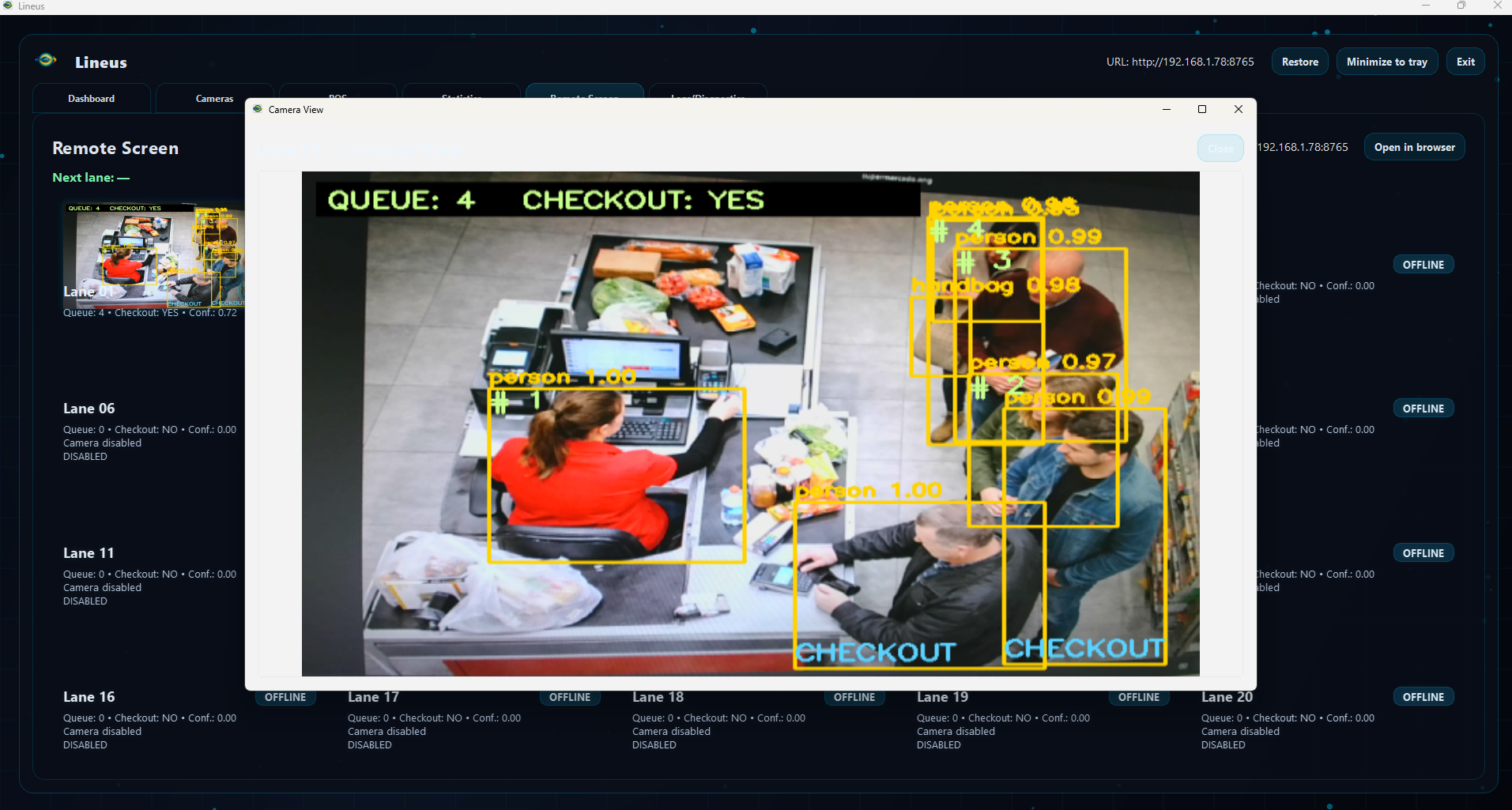
What you see on screen
- Lane status (e.g., free / attending / payment / offline).
- Queue estimate (a simple number, updated in real time).
- Activity indicator (whether the checkout is currently active).
- Confidence so you can tell when a camera view is weak or obstructed.
- Next lane highlight — the one Lineus believes will clear the next customer fastest.
Best practice: mount cameras with a stable view of the queue area and checkout zone.
Better input gives more stable recommendations.
Daily workflow (simple manual)
- Morning: enable today’s open lanes and check camera feeds.
- During peak: watch the “Next lane” and the open-lane suggestion message.
- When staffing changes: enable/disable lanes as they open/close.
- If a lane is blocked: mark it as blocked (so it won’t be recommended).
- Close: disable lanes and stop monitoring.
Remote Screen (for a tablet/phone)
Lineus can show a clean “Remote Screen” view on another device (tablet near the queue, supervisor phone, back office display). It’s designed to show the same essentials: the next lane, lane summaries, and any “open another lane” alert.
Tip: keep the remote device on the same local network as the PC running Lineus.
No cloud account required.
GUI Preview
Click image to enlarge